
Product spotlight · Features & AI
Less inbox chaos.
More helping people.
A support request should lead to a clear next step, not another round of “Who’s handling this?” Ticket Helpdesk brings the conversation, the owner and the follow-through together — in Microsoft Teams, your browser or an installed standalone app.
From request to resolution, in one workspace. Explore 12 features for your team, including AI drafts and summaries in every plan. Use Ticket Helpdesk in Teams, your browser or the installed app. Plan limits apply.
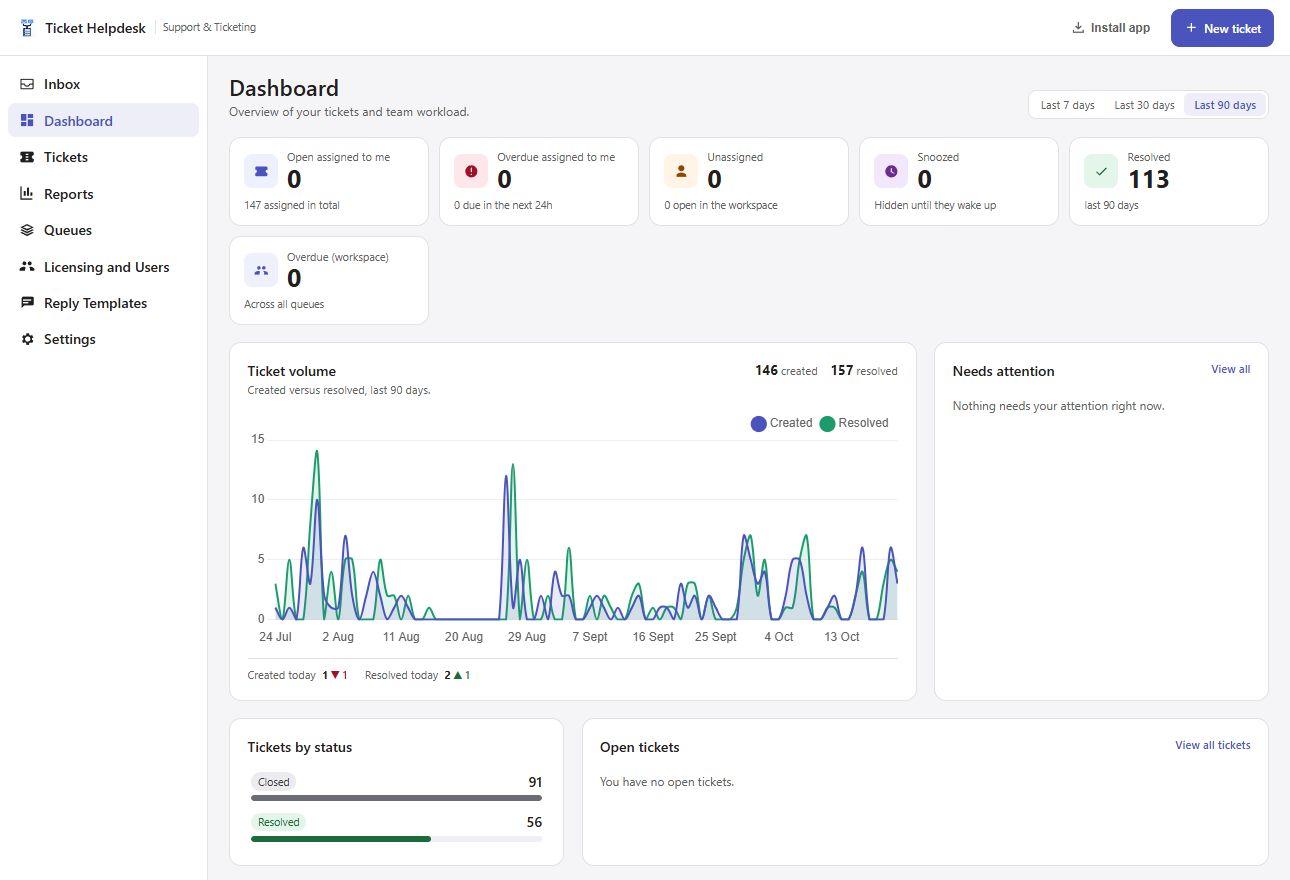
A familiar place for every request.
Your support team already works in Teams. Give them a helpdesk there too: ticket lists, queues, conversations and reports in a dedicated tab. The same helpdesk also works outside Teams, in a browser or as an installed app.
Connect a Microsoft 365 or Gmail / Google Workspace support mailbox to turn incoming emails into tickets and keep customer replies in the same conversation. Or start manually, with a queue and sample tickets, and connect your mailbox later. Shared request forms give people another straightforward way to ask for help.
Email requirements
Automated email intake and email notifications require an active trial or paid plan. Mailbox authorization and your organization’s Microsoft policies still apply.
 View full size
Your helpdesk, with its own place on your device.
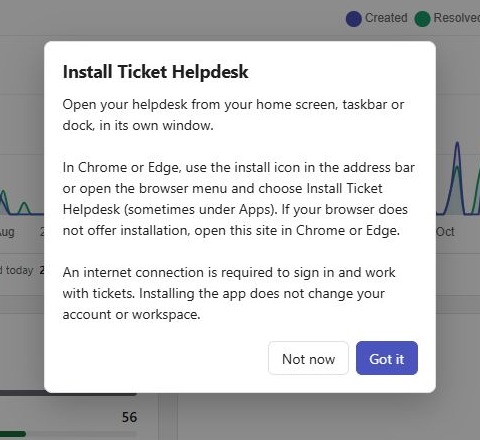
Prefer to work outside Teams? Install Ticket Helpdesk as a standalone progressive web app (PWA). Open it from your home screen, taskbar or dock in its own window, using the same account and workspace rather than setting up a second helpdesk.
Open the helpdesk in your browser and choose Install app for the browser prompt or device-specific instructions. Installation options depend on your browser and device; you can keep using the browser version if installation is not supported.
Connection and installation details
An internet connection is required to sign in and work with tickets. Installing the app does not add offline ticket access or change your plan.
 View full size
A central Inbox built for the next conversation.
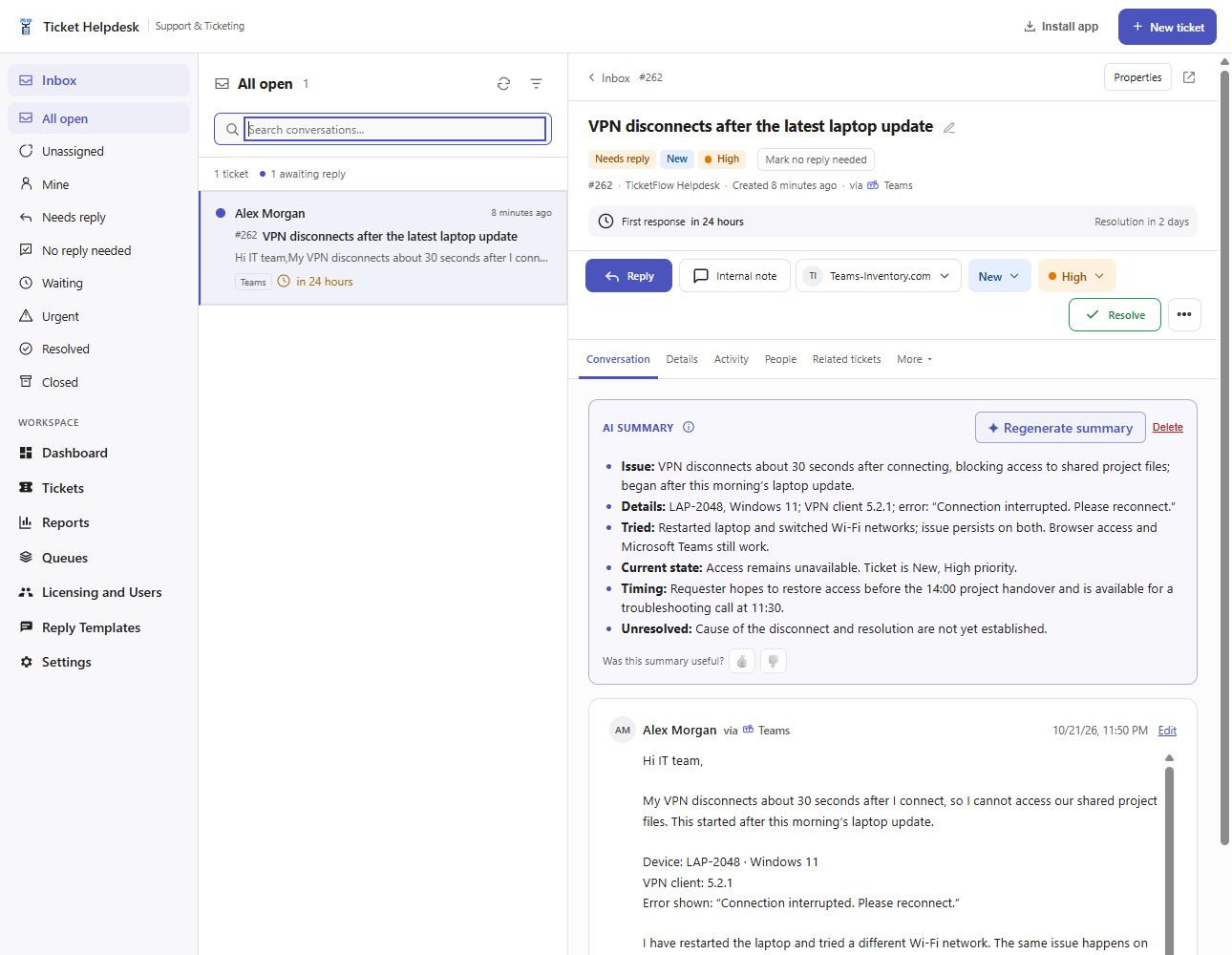
Open Inbox for a three-column workspace: folders, a searchable ticket list and the selected conversation. Move between All open, Unassigned, Mine, Needs reply, No reply needed, Waiting, Urgent, Resolved and Closed without losing your place.
Filter by queue, search and sort the list, then read and reply alongside it. Public replies, internal notes, attachments and drafts use the same ticket workspace. Open Properties for context or switch to the full ticket when you need more room. On smaller screens, move between the list and conversation one at a time.
 View full size
Ask for the details your team actually needs.
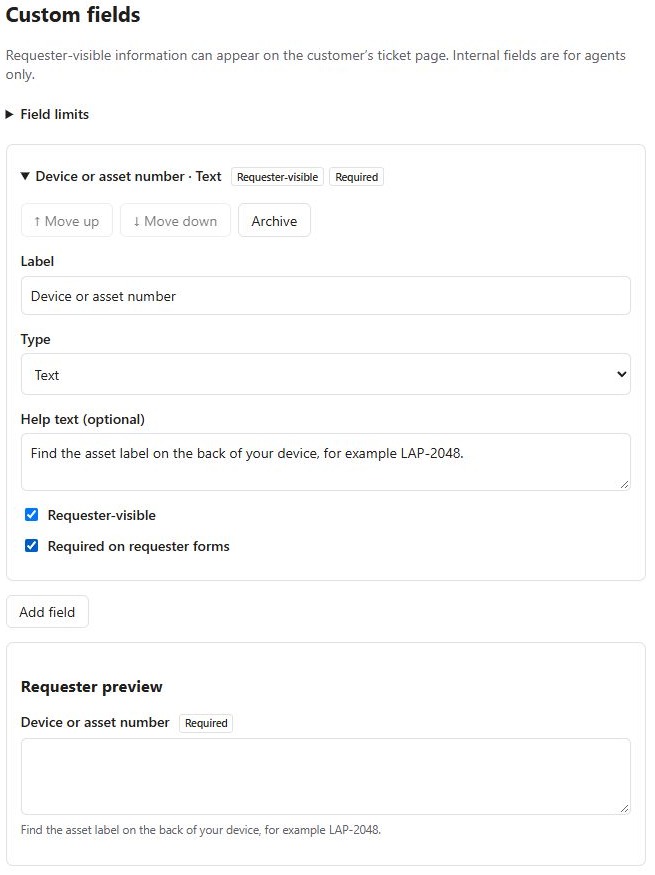
A facilities request needs different information from an IT incident. In a queue’s Custom fields tab, administrators can add text, dropdown, number, date and yes/no questions, arrange them, add help text and preview the requester form.
Make a question requester-visible to collect details up front, or keep it internal for agents. Required requester questions help avoid missing information on forms without blocking email intake. Authorized agents can update answers on the ticket; customers can read requester-visible answers in My tickets and their private status page, while internal fields stay private.
Editing and field history
Customers cannot edit saved answers after submission. Archive fields or dropdown options to preserve past answers rather than deleting the history.
 View full size
Get the screenshot with the request, not three emails later.
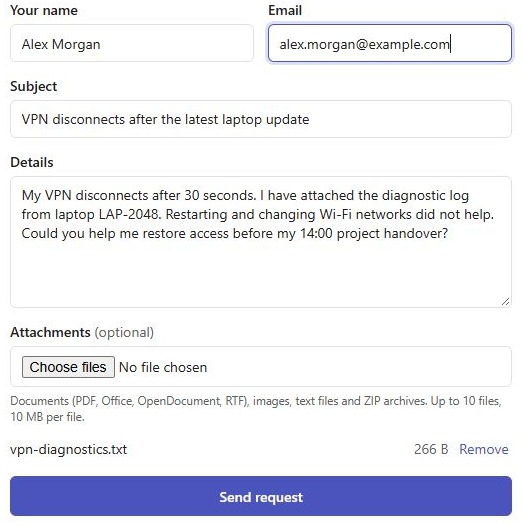
Shared request forms support file uploads, so customers can attach screenshots, documents or logs when they ask for help. The files stay with the ticket for the team to review alongside the conversation.
Upload limits
Shared forms accept up to 10 files, each up to 10 MB, in supported document, image, text and ZIP formats. File-type and size checks apply. The customer status page supports text replies, not new file uploads.
 View full size
Make “who owns this?” an easy question.
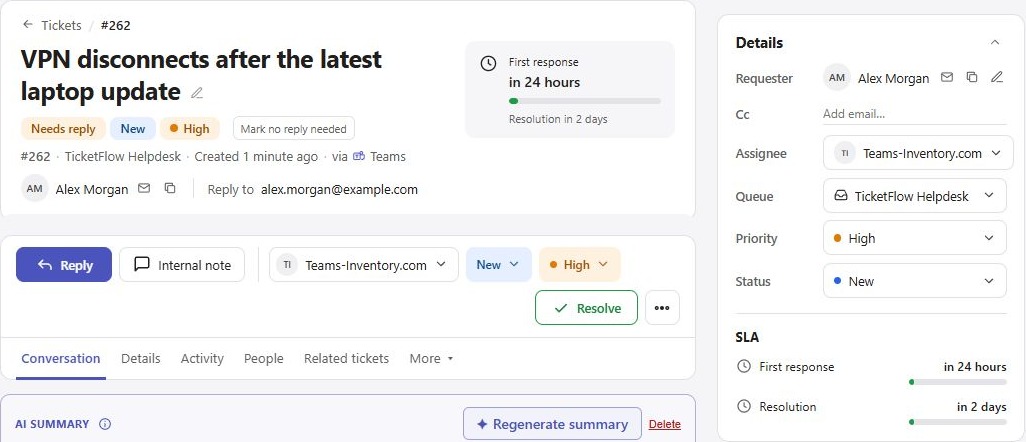
A shared inbox is not the same as shared responsibility. Queues, priorities, statuses and assigned agents make each request visible and give the team a clear place to start.
Distribute the work
Assign manually, choose a default owner, or use round-robin or load-based assignment to share requests among eligible agents.
Keep the context
Public replies, attachments, internal notes and ticket history stay with the request. Reply templates help with the answers you use often.
Know the next step
Watchers and next-step checklists keep colleagues involved. Tags, saved views and bulk actions help organize a busy queue.
 View full size
Follow up without keeping it all in your head.
Set reminders, snooze a ticket until it needs attention, and track first-response and resolution targets. The ticket history helps the next agent understand what already happened, rather than starting the conversation again.
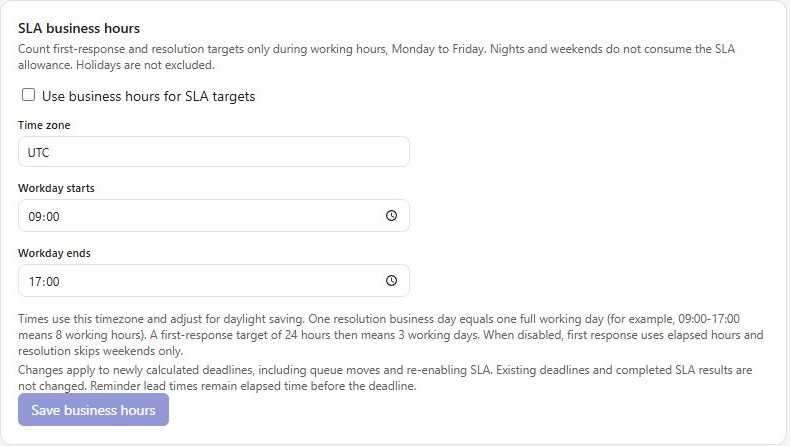
SLAs that follow your working day. In workspace Settings → General → SLA business hours, administrators can enable a timezone and daily Monday–Friday start and end times. Both first-response and resolution targets then count working time only, skipping nights and weekends and adjusting for daylight saving. One resolution business day equals a full configured workday: with 09:00–17:00 hours, a four-hour response target for a ticket created Friday at 16:00 is due Monday at 12:00, and a 24-hour response target means three working days.
PRO includes time tracking and reports so your team can review workload, service targets and the time spent helping. Use that visibility to spot a queue that needs attention or a recurring issue worth fixing at its source.
SLA timing and plan details
Business hours are opt-in. Without them, first response uses elapsed hours and resolution skips weekends only. Calendar changes apply when deadlines are newly calculated, including queue moves and re-enabling SLA; they do not rewrite existing deadlines or completed SLA results. Holidays, multiple calendars and overnight shifts are not supported. Reminder lead times remain elapsed time before the calculated deadline; this is not a new scheduling calendar for other automations or digests.
Teams-tab access is distinct from Teams activity-feed notifications, which are not included in PRO’s default entitlement. Check the current plan details for the capabilities you need.
 View full size
Let rules handle the repetitive work.
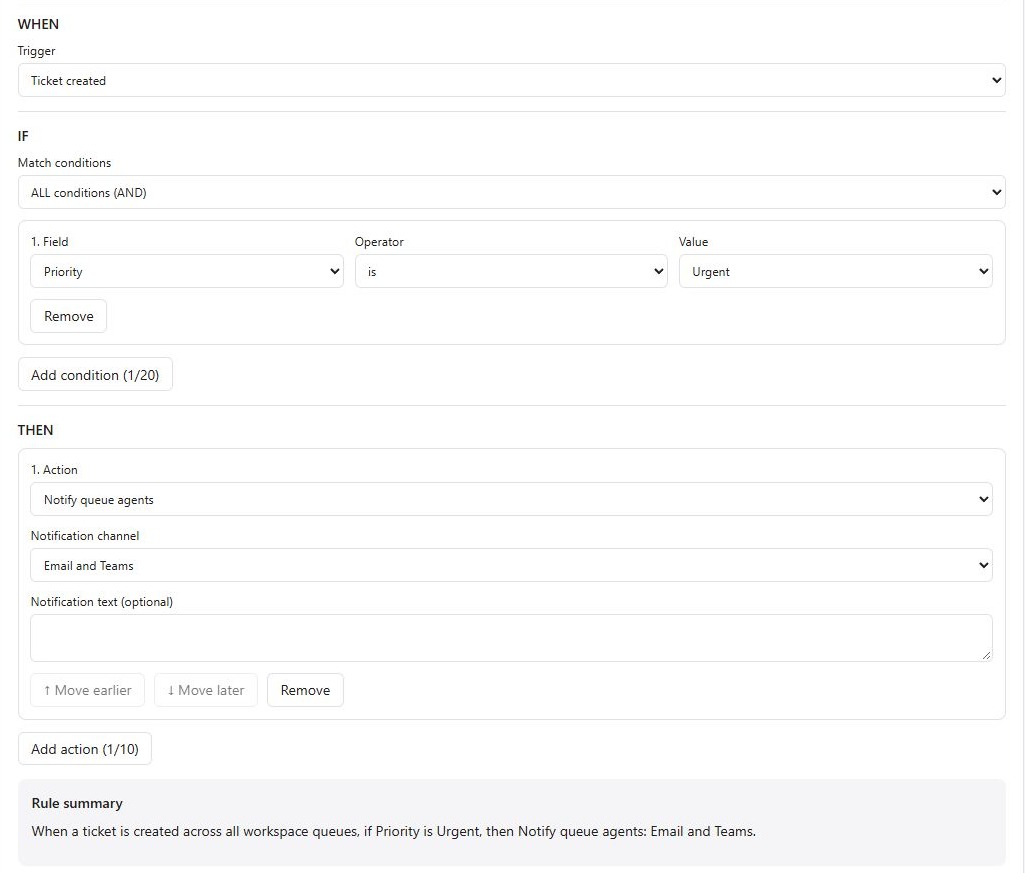
Workspace administrators can now open Settings → Automations and build rules in a visual WHEN → IF → THEN layout. Choose what starts the rule, add optional conditions, then put its actions in order. No code or workflow scripting is needed.
Start with a configurable template: assign a new ticket, alert agents to an urgent request, follow up on inactivity or an approaching SLA deadline, or close a waiting ticket after an unanswered agent reply. Rules can also change priority or status, move tickets between queues, add internal notes and send template emails. Event- and time-based rules run in the background, even when the app is closed.
Preview before enabling. Select a ticket to see matching conditions and the actions that would run, without changing the ticket or sending notifications. After a rule runs, execution history shows the ticket, action results and any skipped or failed steps. You can edit, order, duplicate, disable or delete rules as your process changes.
Rule limits and availability
Trial, PRO and Business include 10 active custom rules per workspace; Enterprise limits are configurable. Free supports disabled drafts and preview, not active custom rules. Channel entitlements still apply: for example, PRO does not include Teams activity-feed notifications. Existing queue auto-close, assignment, customer-reply reopening, acknowledgements and SLA reminders remain independent; review overlap warnings to avoid duplicate notifications. These are ticket rules, not an unrestricted integration platform or a promise of unlimited execution.
 View full size
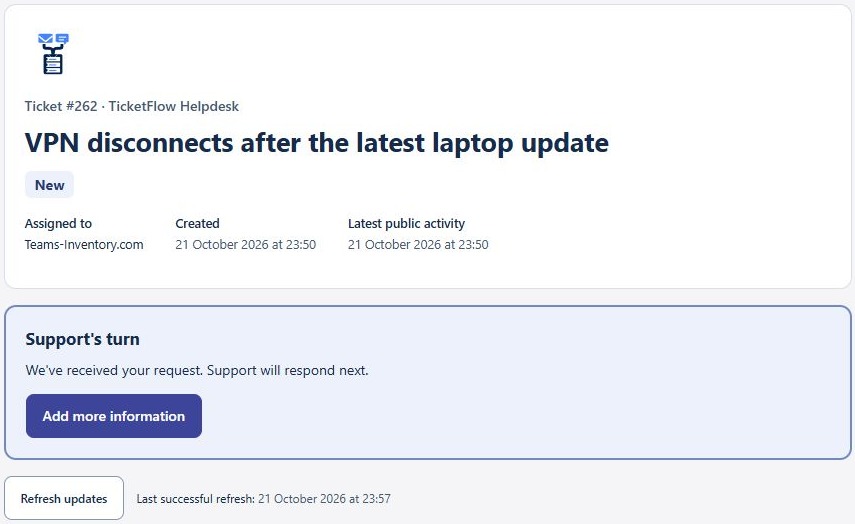
A customer ticket status page. No extra account.
Give customers a private page for their request, with the original message, public replies, status changes and a clear indication of whose turn it is. Enabled ticket confirmation emails include a View ticket status / reply link, so people can follow progress without creating a helpdesk account or taking an agent seat.
Customers can add a text reply or reopen a resolved or closed request with an explanation. Requester-visible custom-field answers are available there too. Internal notes, internal fields and AI drafts stay private.
It is follow-up for one conversation, not a searchable knowledge-base portal or a view across all tickets. Treat private ticket links like passwords: anyone with the link can access and reply to that ticket, so share them only with the intended requester.
 View full size
Less catching up. More time for customers.
AI reply drafts and AI summaries help agents spend less time rereading conversations and writing routine replies. They are included in Free, Trial and paid plans, with no separate AI purchase or lifetime draft allowance. Authorized agents can generate them manually. Automatic summaries are on by default with a per-queue opt-out; automatic reply drafts are off until an administrator enables them in queue settings under AI.
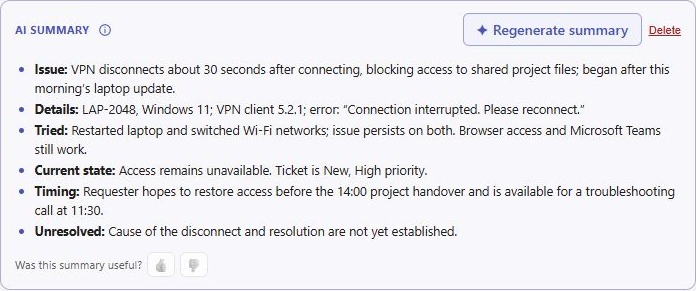
Make handovers easier
A concise ticket summary helps an agent get up to speed without rereading the whole conversation. The aim is less time catching up and fewer repeated questions when a colleague takes over.
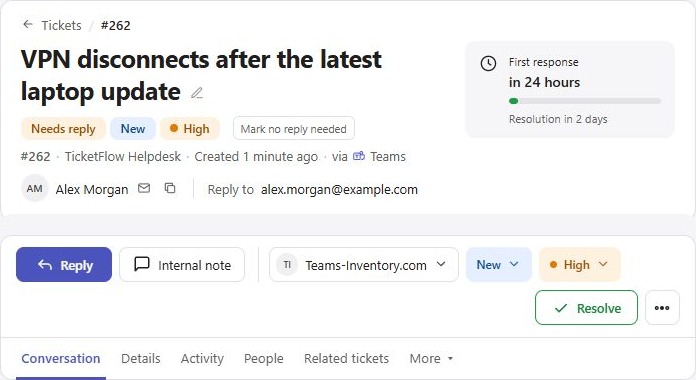
Get past the blank reply box
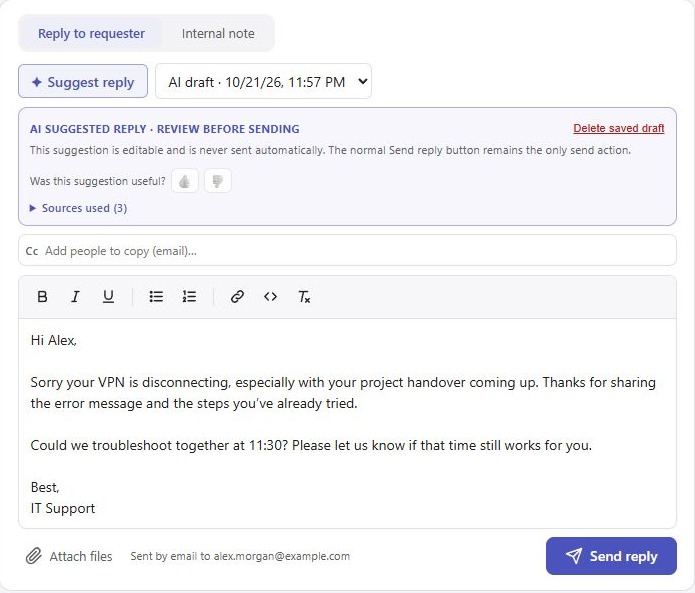
Choose Suggest reply for an editable draft that streams into view. It uses the public conversation, approved reply templates and relevant solved tickets. Inspect the sources, edit the wording and send only when you are ready.
The goal is clearer, more consistent replies without losing the human touch. When more information is needed, the assistance should help the agent ask the right follow-up question rather than make assumptions.
AI drafts are never sent automatically. Your team reviews and edits each suggestion, and decides what to send. Separately configured automation rules can send approved template emails; they do not send AI suggestions. AI can make mistakes; people remain responsible for the answer.
AI should fit your business, not add another process to manage. Organizations should review their privacy and data-handling requirements before using AI with customer information.
Auto-close is included too. Configure it separately under Automation in queue settings. It closes inactive tickets after an agent reply and a configurable waiting period. This is timer-based automation, not an AI decision about whether a problem is solved.
AI usage limits and defaults
On Free, AI reply generation pauses at 100 tickets per UTC calendar month and resumes on the 1st of the next month or after upgrading. Summaries and saved drafts remain available. AI Summary is on by default, with a per-queue opt-out in AI settings. Automatic reply drafts remain off until enabled. The Users & Licensing page highlights estimated monthly AI time saved from sent drafts and summarized tickets, with auto-close savings shown separately and the calculation explained.
 View full size
Better answers should build on what your team already knows.
Your team should not have to solve the same problem from scratch every time. AI reply drafts can draw on approved templates and relevant solved tickets from the current queue, with source references that agents can inspect. Useful past answers become a starting point, not a replacement for judgment.
That helps new colleagues get up to speed and makes answers more consistent across the team. If the available information is insufficient, a draft can propose a clarification question and show Needs information rather than inventing a solution. Review the sources and the answer before sending.
 View full size
Make your next support day a little easier.
Bring in a request with the right details, give it an owner and follow it through in Teams, your browser or the installed app.
14-day trial for one agent, then Free with one agent, one queue, one mailbox and up to 100 tickets per UTC calendar month, with 30-day audit history. More tickets require a paid plan, even for one agent. The allowance resets on the 1st at 00:00 UTC; at 100 tickets, creation, editing and replies pause until reset or a paid upgrade. PRO requires a paid license for every agent, starting with one paid seat. Free public replies carry our branding; tickets and comments are permanently deleted six calendar months after ticket creation, including open tickets. Automated email intake and notifications require a trial or paid plan. Read all plan limits and minimum prices.