Workspace mirroring lets you open the same Ticket Helpdesk workspace from another team or channel in Microsoft Teams. The new tab uses the existing workspace, rather than a separate copy of its tickets.
Only need people in another channel to submit requests? Use a queue request-form tab instead of mirroring the full workspace. Your support team keeps managing every ticket in the original workspace.
Mirror the full workspace
Prerequisite: Workspace mirroring must be available for your account in both tabs. If you do not see the option in Settings, please contact us for help.
- Create a new team or channel in Microsoft Teams where you want to mirror your existing helpdesk.
-
Open the new channel and click the + button to Add a tab.

-
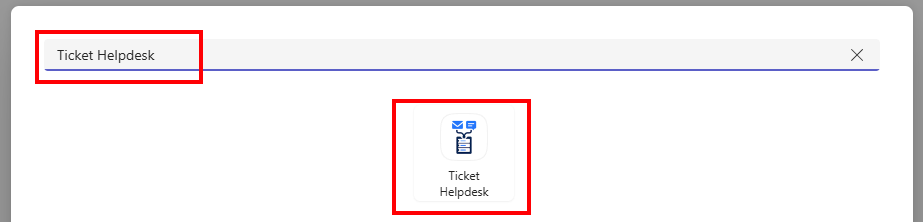
Search for Ticket Helpdesk and select the app.
-
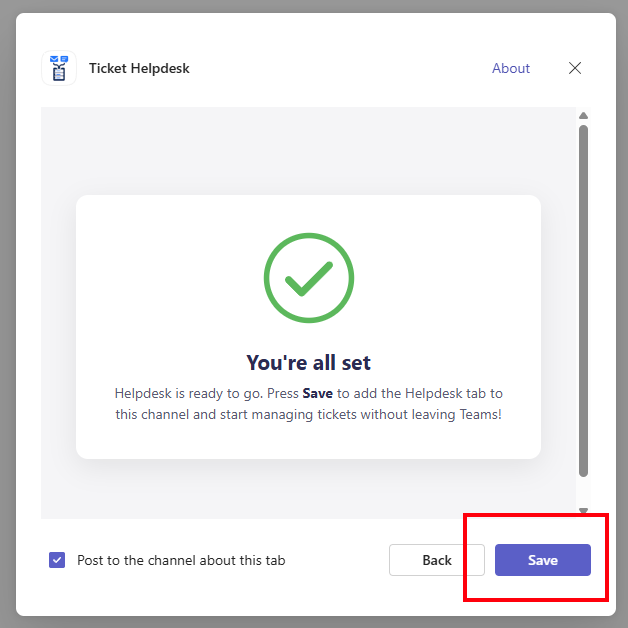
Click Save to add the Ticket Helpdesk tab to the new channel.
-
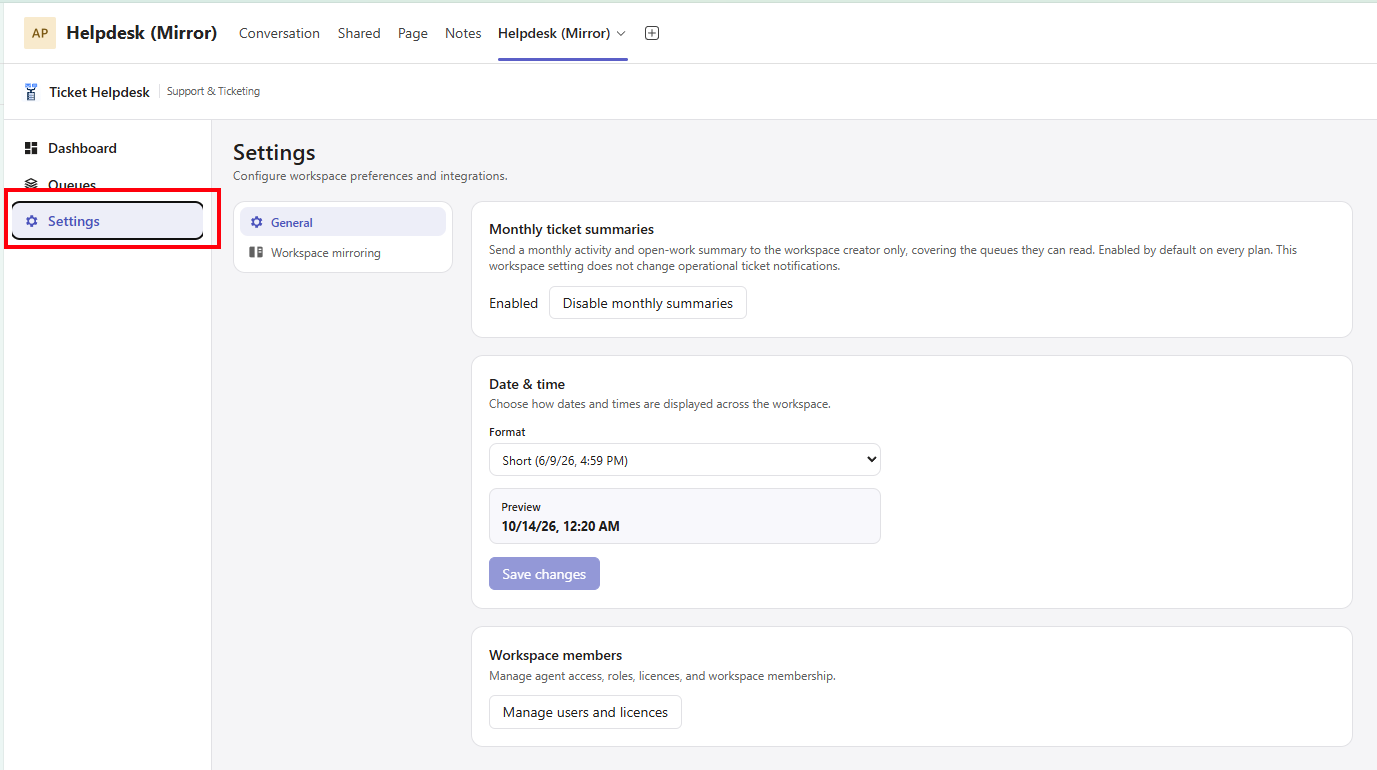
Go to the original Ticket Helpdesk tab containing the workspace you want to mirror. Open Settings, then select Workspace mirroring.
- Under Current tab credentials, use Copy ID and Copy secret to copy the original workspace's credentials. Keep the workspace secret private.
-
Return to the new Ticket Helpdesk tab and open Settings, then Workspace mirroring. Under Replacement workspace, paste the original workspace's Workspace ID and Workspace secret into the replacement credentials fields. If the entered ID matches the current tab's ID, an error blocks self-replication: switch to the new destination tab before continuing.
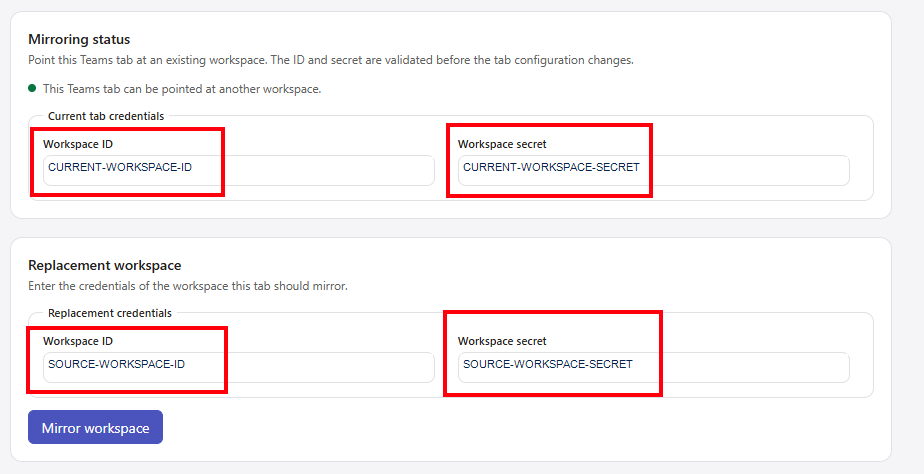
The screenshot uses placeholders to protect workspace credentials. Use the values copied from your original workspace.
- Click Mirror workspace, review the overwrite warning, and select Overwrite tab. Once the credentials are validated, the new tab opens the original workspace. If the new tab owns a different workspace, that workspace is marked as deleted; the original source workspace is kept.
Add a queue request form to a Teams channel
A request-form tab shows only the selected queue's form, without the Helpdesk navigation. People can submit requests without a Helpdesk account, and their tickets go straight to that queue.
See the illustrated intake-tab guide for the requester experience, including submitting for yourself or a colleague, the Teams people picker, attachments and following tickets.
Prerequisites: You must be a workspace administrator to configure the tab. The source queue must be active and its request form enabled. Full workspace mirroring is restricted to designated accounts, but Queue form tab is available to workspace administrators.
- In the original workspace, open Queues and find the queue that should receive requests. If it says Request form off, open Edit > Request form, enable the form, and save.
- To share the form as a normal web link, select Copy form link on the queue card. For a full Ticket Helpdesk channel tab, follow the remaining steps instead; you do not need to paste the form link or a share token.
- In the original workspace, open Settings > Queue form tab. Under Current tab credentials, use Copy ID and Copy secret to copy the Workspace ID and Workspace secret. Keep the secret private: use it only for setup, never in a channel message or a link shared with requesters.
- In the destination Teams channel, select + to add a tab, choose Ticket Helpdesk, and select Save. This initially creates a separate workspace for the new tab. Use a new tab rather than an existing workspace you still need.
- In that new tab, open Settings > Queue form tab. Under Source workspace, enter the original workspace's ID and secret, then select Load queue forms. Entering the current tab's own workspace ID shows an error and blocks self-replication; switch to the destination tab and enter the source credentials there. Check that you entered both credentials correctly if the forms cannot be loaded.
- Select the desired Queue form. Only enabled forms for active queues in the source workspace are listed. Review the Form link or select Preview form. If no forms are listed, enable the source queue's request form and load again.
- Select Show form in this tab, read the warning, and select Overwrite tab. This replaces the current tab's content with the selected request form. If the tab owns a different workspace, that workspace is soft-deleted: its credentials stop working and mailbox sync stops, but its data is retained. It is excluded from workspace creation statistics.
- Submit a test request from the new form tab and check that it arrives in the selected queue in the original workspace.
Your source workspace is preserved. Configuring a form for the same workspace, or replacing a tab that only borrows a workspace, does not delete that workspace. Removing the finished request-form tab does not delete the source workspace either. The finished tab uses the public form link, not the workspace secret.
Following submitted requests: after Microsoft sign-in, select My tickets in the form tab, then choose Open or Closed. Closed includes resolved tickets. Each entry shows the ticket number, subject, current status and submission date. The view shows only tickets in this queue whose requester email matches your verified Microsoft account, including earlier requests submitted with that email. Teams uses Microsoft single sign-on; outside Teams, sign in with Microsoft first. Typing an email into the form does not grant access to that person's tickets. Use New request to return to the form without losing your draft.
Continue managing the queue and its form in the original workspace. Turning the form off stops it accepting requests and disables My tickets for that form. Creating a new share link invalidates the old token, including existing form tabs; update or recreate those tabs using the current form.
Please contact us if you have any questions or need help with workspace mirroring.